
Material Variants
Save and compare alternative finishes, with material choices and texture positions stored in the model.
- Where to find it
- Main toolbar → Material Variants
- Scope
- Explicitly registered family targets
- What changes
- Applies real model materials and supported texture mappings.
On this page
How to use it
- Open Material Variants → Setup. Create a Set and name the first Variant.
- Add a Family and register its intended material assignments from Entire model or Selected geometry.
- Create another Variant and choose its family materials. Configured choices can update the actual model immediately.
- Review the result, use Present to compare looks, and save the SKP.
Expected result
Keep Natural Oak and Dark Timber kitchen options in one model, with separate choices for fronts, worktop and hardware.
Controls & options
| Control | What it does |
|---|---|
| Set | Group related variants and their families. |
| Variant | Store a named combination of family choices and supported mappings. |
| Family | Connect registered assignments to the finish chosen for each variant. |
| Setup / Present | Manage the configuration or use the simpler switching view. Changing the view does not restore paint. |
| Change Material | Choose a material for the family. Once configured, choosing can apply the change immediately. |
| Default | Clear the controlled assignment, potentially revealing inherited paint. |
| Leave unchanged | Skip that family’s assignment and mapping work on application. |
| Edit Targets | Inspect and deliberately add, remove or prune missing registered assignments. |
| Edit Texture | Edit supported positions in the selected variant’s context. |
| Show Uses / Show Editable Faces | Display a temporary highlight of use or eligible texture-editing surfaces. |
| Include shared faces | Review and authorize other occurrences of the same native faces where offered. |
| Duplicate | Copy the variant choices and saved mappings; materials remain shared definitions. |
| Refresh | Check the selected variant against the current model state. |
Sets, variants, families and targets
A Set groups related design alternatives. A Variant is one named look. A Family connects registered material assignments to the material choice for each look. Targets are the actual container assignments or face sides that family controls.
For a kitchen, make a Kitchen set with Natural Oak and Dark Timber variants. Add families such as Cabinet fronts, Worktop and Hardware. Each family can use a different material in each variant.
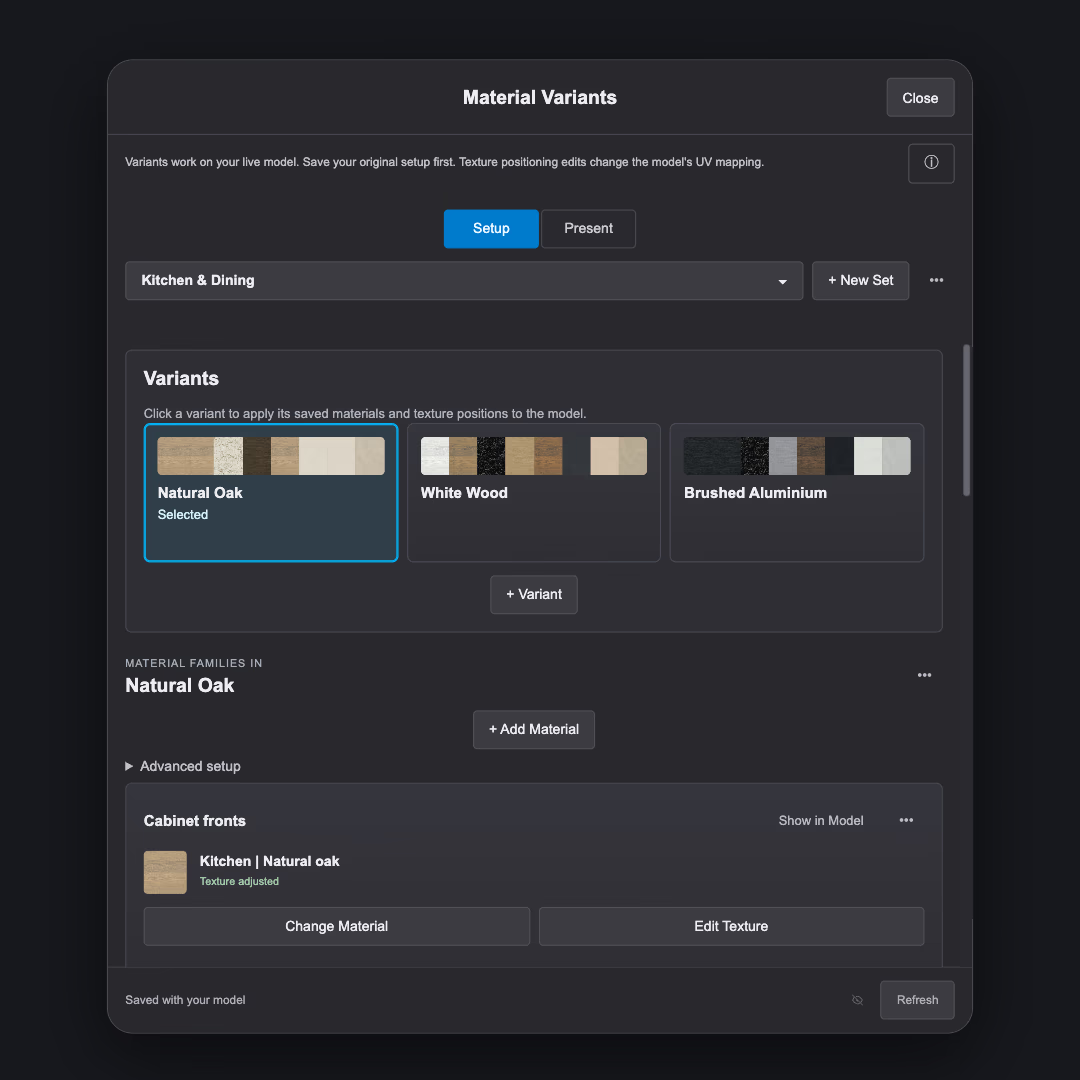
Creating a set
A new set begins empty, so you name and configure the alternatives you need. A variant named Baseline is an ordinary variant, not an automatic restore point.
- Create a Set and name your first Variant.
- Add a Family and choose its first material.
- Choose Entire model or Selected geometry to register the assignments currently using that material.
- Create another Variant and choose a material for each family you want to change.
- Apply and inspect the model; save the SKP to retain the setup.
Registered targets
Registration records assignments once. Applying a look updates those registered targets; it does not search the whole model again for everything that now uses the same material.
New geometry is not automatically enrolled. Use Edit Targets to add selected assignments, remove selected assignments, or remove missing targets. Removing a target leaves its current paint in place.
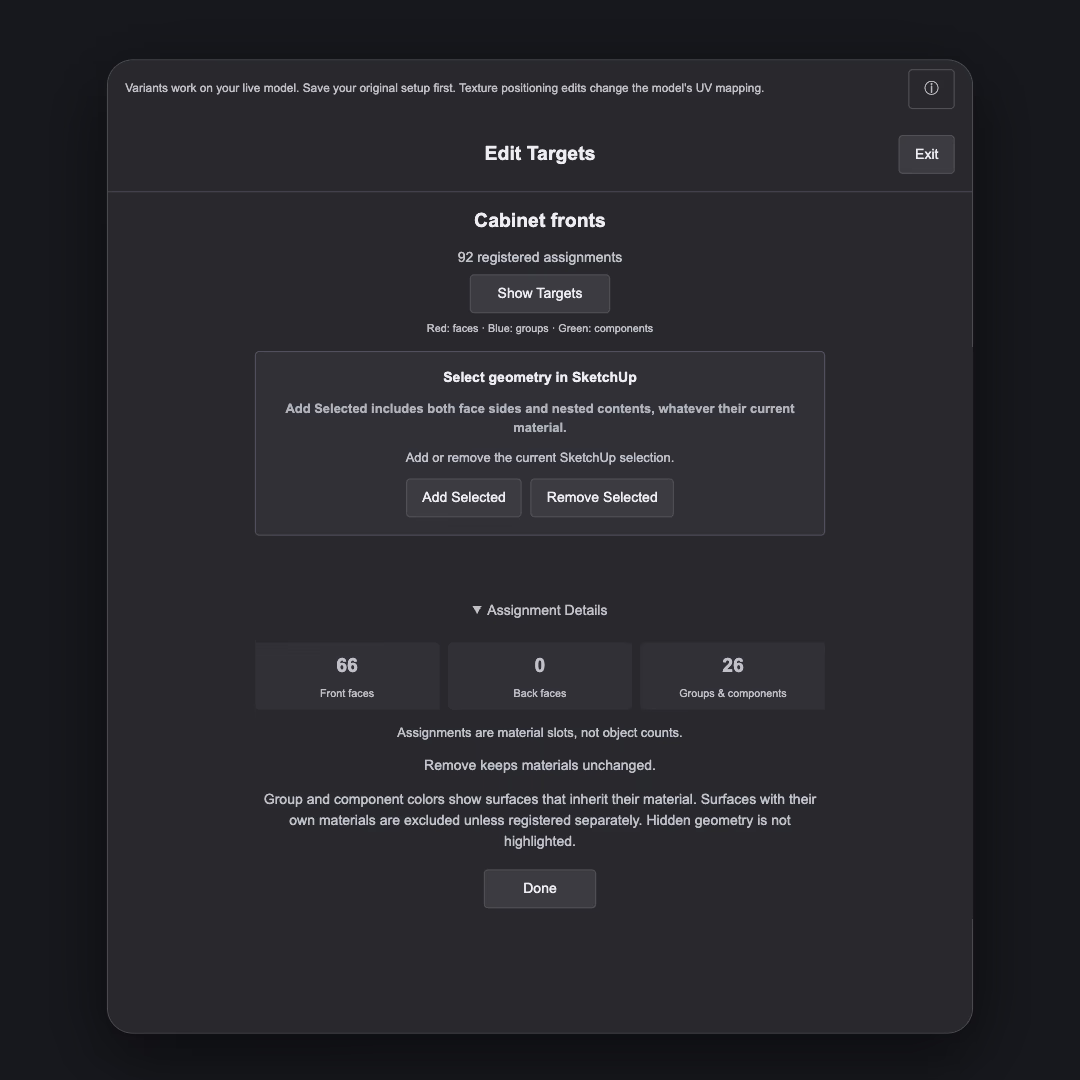
Material, Default and Leave unchanged
Choose a material to assign that finish. Choose Default to clear the controlled assignment, which can reveal an inherited parent material. Leave unchanged skips that family for this application, including its saved mapping work.
A missing configured material is an error to repair. UMM does not quietly substitute Default or treat it as Leave unchanged. A duplicate variant shares material definitions and copies its choices and saved mappings; it does not duplicate every material.
Model changes and verification
Applying a variant writes actual SketchUp material assignments and supported saved texture positions. It is not a temporary display overlay. Closing the panel or changing between Setup and Present does not restore a previous look.
Highlights such as Show Uses are visual aids; they are separate from applying a variant. Manual painting can change the model after an application. Refresh and inspect verification rather than relying only on the last clicked card.
Saved texture positions
Use the family’s Edit Texture workflow for supported faces. Review the editable surfaces and shared occurrences before entering Texture Transform. Apply saves the supported positions with that variant; Cancel does not save the edited mapping.
A material choice change can invalidate that family’s material-specific saved mapping. Deleted or changed geometry may also make old mappings unusable. Review guidance when switching looks.
Saving and collaboration
Use Setup to manage choices and targets. Use Present for a simpler view of the looks. Apply the intended look before saving the SKP you send to a collaborator.
The configuration belongs to the model. Someone without UMM sees the current real materials and mapping, but cannot use UMM to switch the saved looks. Keep alternative materials in the file and avoid cleanup tools that do not know about variant references.
- Save the whole SKP to share the model-owned set, targets and mappings.
- A Save As copy becomes a separate project; later changes are not synchronized.
- Copying geometry into a new model is not a transfer of the model’s Variant Sets.
- Agree who edits the authoritative SKP and which look should be active at handoff.