
Main workspace
Material list, selection, search, sorting, usage filters and status.
- Where to find it
- UMM main window
- Scope
- Current model material list
- What changes
- Browsing does not repaint geometry.
On this page
Find your way around
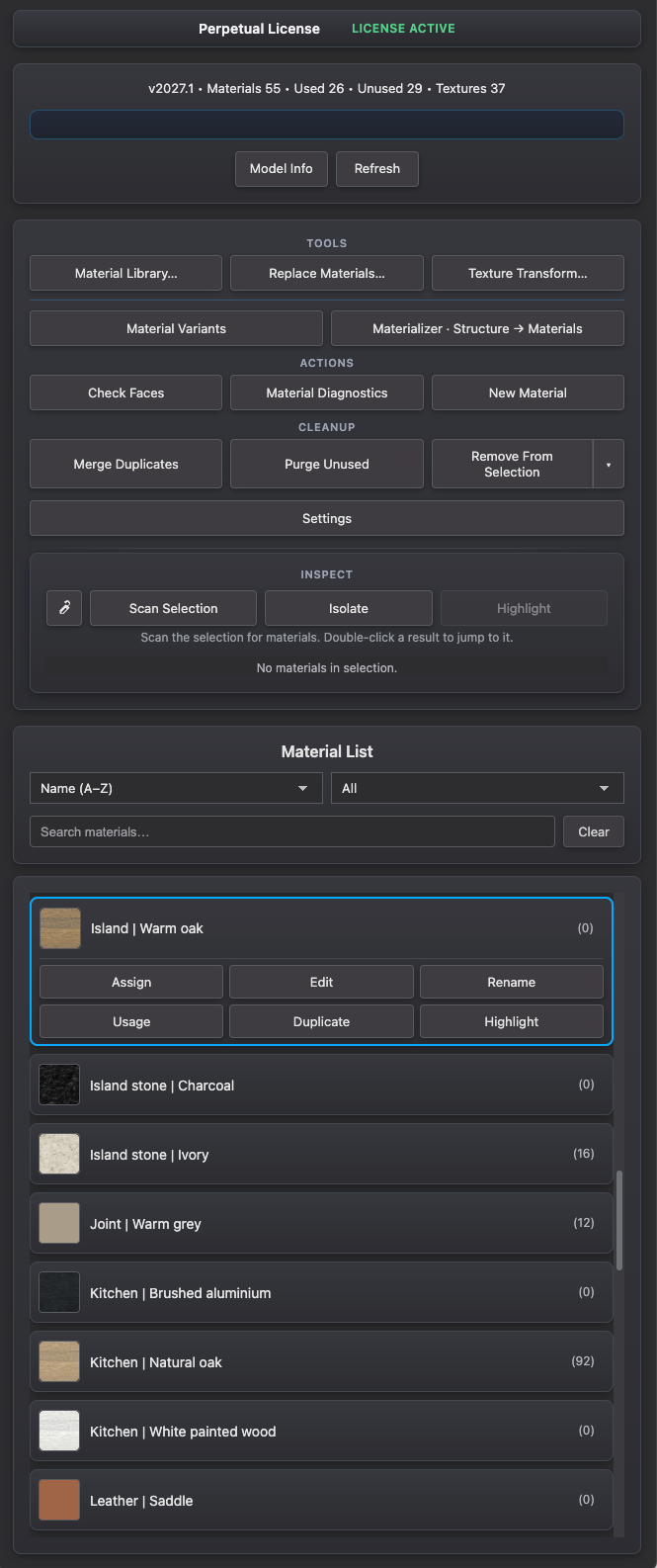
- Use the header for license status, Model Info and Refresh.
- Choose a tool in Tools, Actions or Cleanup. Settings controls assignment and display preferences.
- Use Scan Selection, Isolate and Highlight to inspect materials. Search and filter the material list below.
- Open a material card for Assign, Edit and other material actions.
Tools → · Actions → · Cleanup → · Settings → · Inspect → · Material cards →
Expected result
For a kitchen model, select a cabinet in SketchUp and use Scan Selection to locate its finishes without repainting it.
Controls & options
| Control | What it does |
|---|---|
| Refresh | Reload the material list from the current model. |
| Search materials | Filter materials by name or a partial match. Clear removes the search text. |
| Sort | Order by name or usage, ascending or descending. |
| Usage filter | Show All, Used or Unused materials. This filter is not a decision that a material is safe to delete. |
| Material cards | Select materials and access Assign, Edit, Rename, Duplicate and other available material actions. |
| Selected materials bar | Review the current material selection and use its available actions. |
| Recent Actions | Open the status area to read recent messages and operation details. |
Behavior and limits
Selecting materials in UMM and selecting geometry in SketchUp are different selections. Material actions use the material selection; geometry operations also depend on the SketchUp selection and edit context.
Use the search, usage and isolation filters together carefully. If a material seems missing, clear those filters and Refresh.