
Assign
Paint selected groups or components directly, or put material on the faces inside them.
- Where to find it
- Material card → Assign; Settings → Material Assignment
- Scope
- SketchUp selection and active edit context
- What changes
- Writes material assignments.
On this page
How to use it
- Select the faces, groups or components in SketchUp.
- In Settings → Material Assignment, choose Assign Target → To Selection to paint those objects directly, or To Faces to paint eligible faces inside them.
- For To Faces, review Paint mode and Two Sided Workflow. Shared component contents may be skipped when their other occurrences are outside the selection.
- Save Settings, then choose Assign on the material card.
Expected result
A chair has Default frame faces and directly painted fabric. Assign oak with To Selection: the frame inherits oak while the fabric keeps its own material.
Controls & options
| Control | What it does |
|---|---|
| Assign Target → To Selection | Paint selected faces or containers directly. Nested assignments are preserved. |
| Assign Target → To Faces | Traverse eligible faces within the selected scope. |
| Paint mode → Overwrite Existing Paint (Deep Paint) | Allow eligible existing face paint to be replaced in To Faces mode. |
| Paint mode → Do Not Overwrite | Use the blank-only face workflow. Does not limit To Selection. |
| Two Sided Workflow | Control whether relevant face assignments affect both sides. |
Assign Target setting
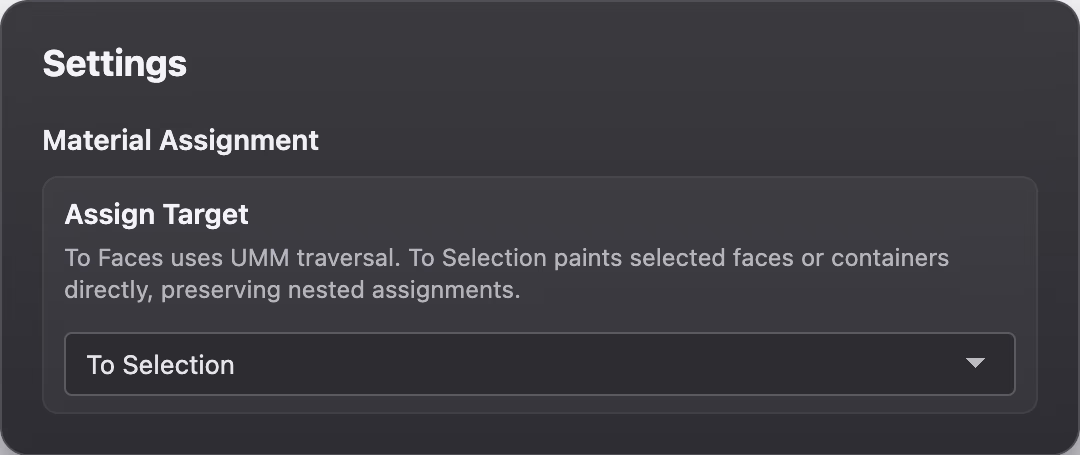
In Settings → Material Assignment → Assign Target, choose To Selection or To Faces. New or missing settings use To Selection; a saved To Faces preference is preserved.
To Selection
UMM writes the material directly to each selected face, group or component. It does not enter container contents or make objects unique. Existing nested assignments remain in place.
A selected container receives a material on its outside assignment. Default faces can inherit that material; explicitly painted faces keep their own finish.
- Select the faces, groups or components you intend to paint.
- Choose To Selection and the material you want.
- Assign, then inspect any areas that appear unchanged: they may have their own paint.
To Faces
To Faces uses UMM’s face traversal and safety rules. Use it when your intention is to put materials on eligible faces inside your selection. Paint mode controls whether existing paint can be replaced or only blank faces are painted.
Container assignments can be cleared during overwrite workflows after safety checks. In blank-only workflows, existing container paint is retained. Review the result if inheritance is part of your model structure.
Example: container paint and face paint
Imagine a chair component with Default frame faces and explicitly painted linen cushions. To Selection changes the chair’s container finish: the frame inherits it and the linen remains. To Faces with overwrite can replace eligible face paint, including the fabric. Choose based on the change you intend.
Related removal actions
From Selection clears direct assignments on the selected supported entities; on faces it clears both front and back. Parent paint can become visible afterwards.
From Hierarchy also clears supported assignments through the selected hierarchy, including hidden descendants. It does not make shared definitions unique, so their other occurrences may change. Inspect the scope before using it.