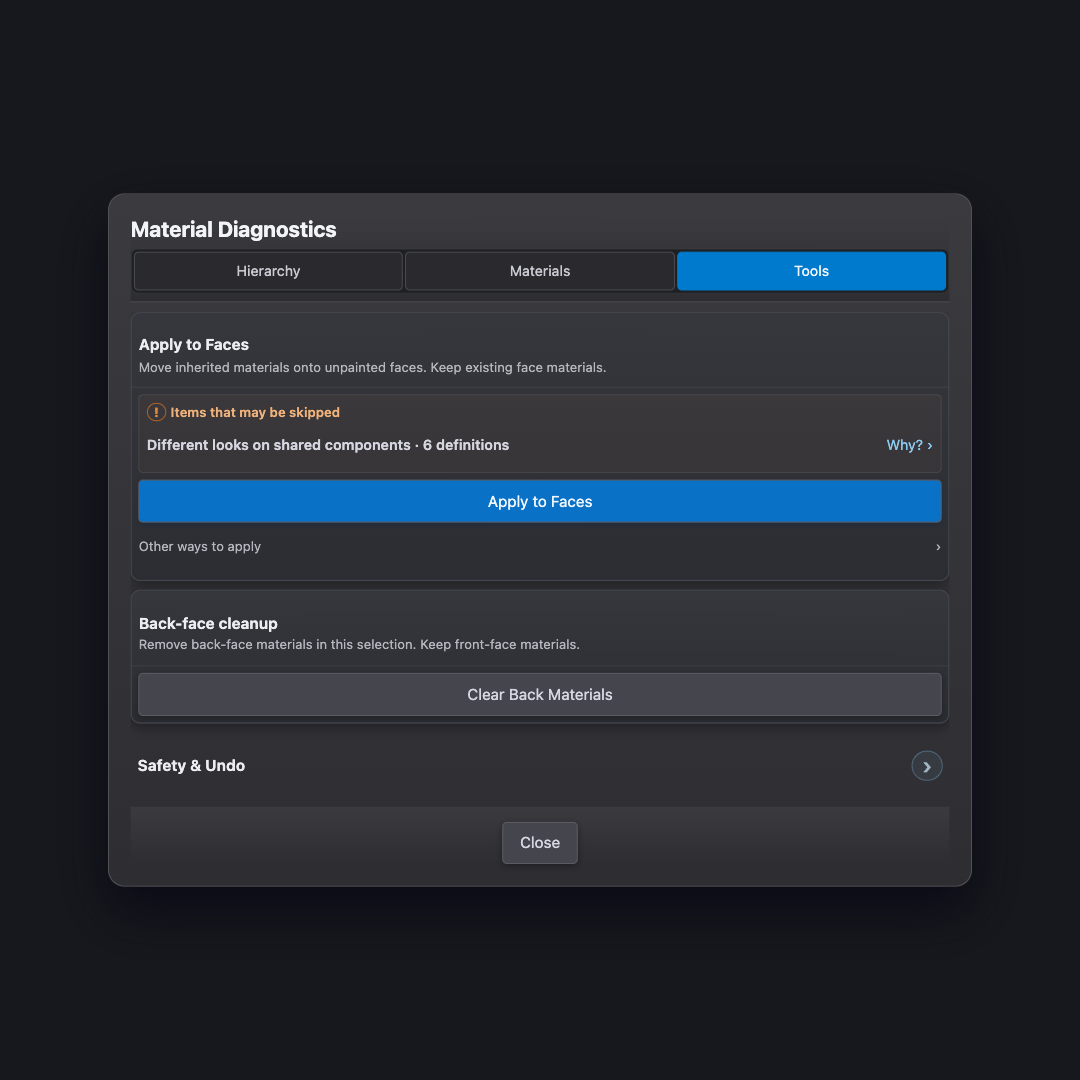
Material Diagnostics
Inspect material inheritance, assignment locations and optional conversion tools.
- Where to find it
- Main toolbar → Material Diagnostics
- Scope
- Captured selection; model root when selection is empty
- What changes
- Inspection is read-only. Tools perform explicit edits.
On this page
How to use it
- Select the objects to inspect, or clear selection for the model root.
- Open Material Diagnostics → Hierarchy.
- Compare Appearance with Assigned, then use Materials to inspect assignment locations.
- Use Tools only when you intend to edit. Review each action’s scope and shared-component consequences first.
Expected result
A cabinet door appears oak while its face is Default. Hierarchy reveals which surrounding container supplies the oak.
Controls & options
| Control | What it does |
|---|---|
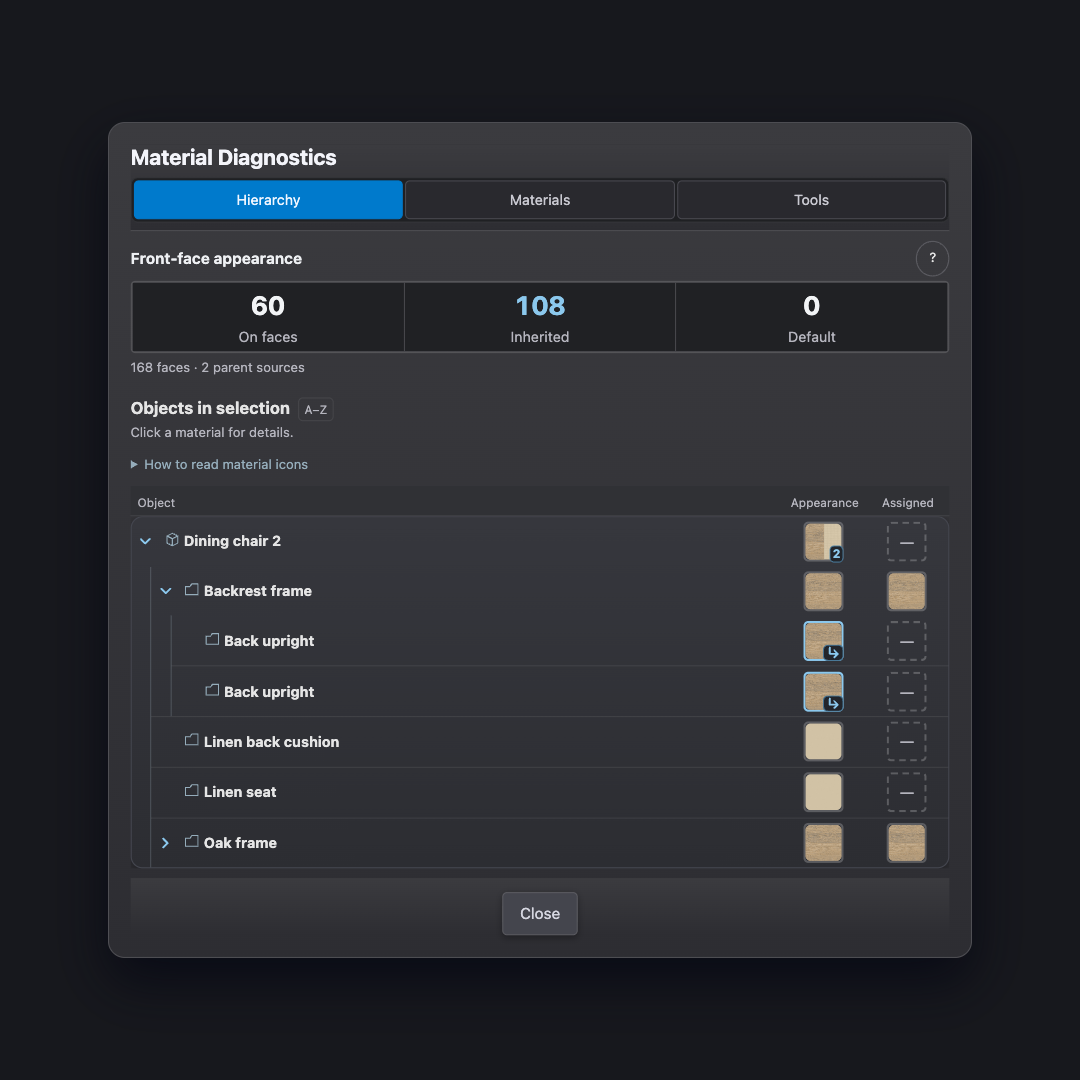
| Hierarchy | Browse the captured object hierarchy and front-face material appearance. |
| Appearance / Assigned | Compare effective appearance with direct paint. |
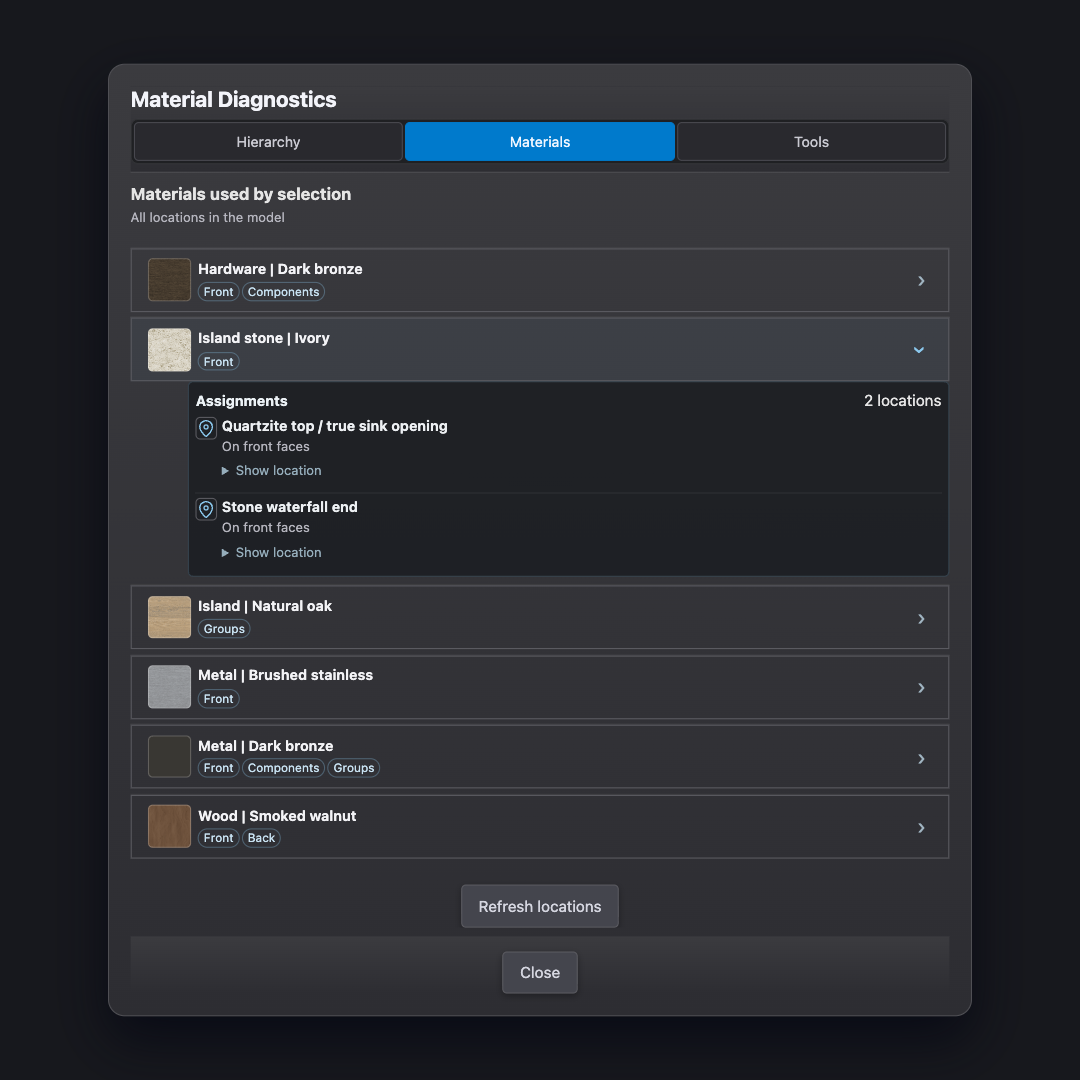
| Materials | List materials used by the captured scope and explore their model-wide assignment locations. |
| Location pin | Navigate to a supported assignment occurrence. This does not broaden the captured material filter. |
| Tools → Apply to Faces | Move inherited materials onto eligible faces while preserving appearance where supported. |
| Apply to Front Faces | Apply to unpainted front faces only; back-face appearance may change. |
| Make Unique & Apply | Explicitly make planned conflicting shared component instances independent, then apply to faces. |
| Clear Back Materials | Remove back-face assignments in the selected scope. This does not reverse faces. |
Captured report scope
Open Diagnostics with a selection to capture that selection and its hierarchy. With no selection, Diagnostics captures the model from its root, including when you are inside an editing context.
The captured report does not follow every selection change as you browse. Open a new report when you want a different scope. A model-wide report does not authorize model-wide Tools edits.
Hierarchy
Expand groups and components to follow their structure. Appearance describes the effective front-face material, including inheritance and mixed appearances. Assigned shows the material painted directly on the object or face.
Inspect a row to understand where the material comes from. An object can have a direct assignment that contributes no visible front-face finish because its contents override it. Totals describe face occurrences in the captured hierarchy, including hidden geometry—not just the current camera view.
Materials and locations
The material list is filtered by what is used in the captured scope, including inherited parent paint. Expand a material to see its assignment locations across the model, not only inside the original selection.
Use a location pin to navigate to a supported object. Navigation can take you outside the original selection; it does not widen the report’s material filter. If the model changes, obtain a fresh report.
Tools and editing scope
Apply to Faces moves an inherited appearance onto eligible faces. It is an optional workflow change, not a requirement for a healthy model. Read the shared-component and scope information first.
Back-face cleanup is a separate action. Removing back paint is not the same as fixing face orientation. Choose a selection and a new report before using Tools from a model-wide view.