
Texture Transform
Position, rotate, scale and map textures on eligible faces or selected containers.
- Where to find it
- Main toolbar → Texture Transform; Variants → Edit Texture
- Scope
- Reviewed face or container selection; one chosen material
- What changes
- Changes native face texture mapping.
On this page
How to use it
- Select textured faces, or a group/component, then open Texture Transform.
- Review the chosen material and Surface Analysis. If shared faces are reported, review the other affected occurrences before authorizing Include shared faces.
- Choose a Quick Mapping method when needed, then Preview Mapping. Adjust ΔU, ΔV, Angle or Scale (Uniform).
- Choose Apply to keep the mapping, or Cancel to discard the session.
Expected result
Rotate oak grain on a selected cabinet group without repainting its handles. Only eligible faces in the reviewed scope participate.
Controls & options
| Control | What it does |
|---|---|
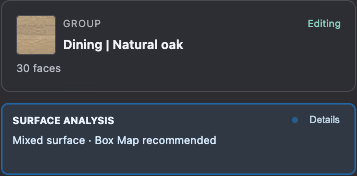
| Surface Analysis | Review the selected surfaces and suggested mapping approach. |
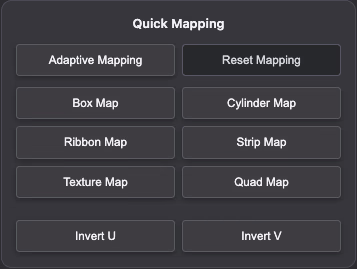
| Adaptive Mapping | Choose a mapping approach based on selected geometry orientation. |
| Reset Mapping | Return to a clean mapping baseline. |
| Box Map | Project mapping from box-like axes. |
| Cylinder Map | Map around cylindrical or rounded forms. |
| Ribbon Map | Map continuous ribbon-like surfaces such as paths and walkways. |
| Strip Map | Map connected side strips such as trims and curved walls. |
| Texture Map | Use the material texture as the mapping baseline. |
| Quad Map | Fit quad-like or four-corner surface workflows. |
| Invert U / Invert V | Flip the texture direction along the corresponding axis. |
| Preview Mapping | Inspect mapping before committing. |
| Adjust Together / Adjust Individually | Choose how the participating faces are adjusted. Shared native faces remain linked. |
| ΔU / ΔV | Offset the texture in tile units. |
| Angle | Rotate the texture in degrees. |
| Scale (Uniform) | Adjust texture scale uniformly. |
| Reset | Reset the adjustment controls. |
| Apply / Cancel | Keep or discard the current texture-editing session. |
Starting a session
Select a group or component, then open Texture Transform. Review the selection and Surface Analysis. Work with one chosen material per session; if several are available, choose the one you want to adjust.
Container selection rules
For a painted selected container, UMM follows Default faces inheriting the chosen material through unpainted nested containers. Faces with explicit paint are not silently absorbed into that inherited workflow.
Traversal stops at painted child containers—even when their material is the same. Select a painted child separately when you want it to be a root of the operation.
A selected unpainted container can expose textured sides of its directly contained faces. This does not recursively collect explicit paint from deeper nested objects.
Mapping and adjustment workflow
Use Quick Mapping for the surface you are working with, then Preview Mapping to inspect flow, scale and orientation. Adjust Together uses one set of controls across the participating surfaces; Adjust Individually offers individual-face adjustment. Shared components remain linked.
- Choose a suitable mapping mode.
- Inspect the preview for scale and seams.
- Adjust position, angle and uniform scale.
- Apply to keep the result or Cancel to discard the session’s changes.
Editing texture positions in a variant
Use Edit Texture inside Material Variants when the texture position should be associated with a saved look. Ordinary container Texture Transform does not register a family or write a variant configuration.
Variant texture workflows support saved mappings for eligible direct and inherited faces. Geometry changes can invalidate saved positions; review the reported result rather than assuming every old mapping still applies.