
What's New in 1.6
- Materializer · Structure → Materials: Materializer creates structured material placeholders from your model's Outliner structure.
- Replace Materials modes: Use Simple for one-to-one model-wide swaps, or Batch for multi-row mapping workflows.
- Single Window (Drawers) mode: Run Material Library, Replace Materials, and Texture Transform inside the main window, with per-panel drawer side preferences.
- Library controls: Material Library now includes sort, usage filters, and faster search-driven list management.
- Rule-based system: One material logic across every tool, so selection defines scope, structure is respected, and results are more consistent.
Material Workflow Overview
SketchUp allows materials to be applied in several ways. That flexibility is powerful, but it can create material structures that are difficult to manage in larger or more complex models.
Ultimate Material Manager introduces a clearer workflow designed to keep materials organized, predictable, and easier to manage across production models and rendering pipelines.
The Three Levels of Materials in SketchUp
In SketchUp, materials can exist in three different contexts. Understanding those levels explains why the same painting action can affect geometry, a single object instance, or a shared component definition.
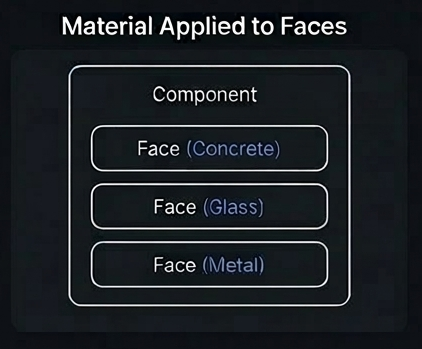
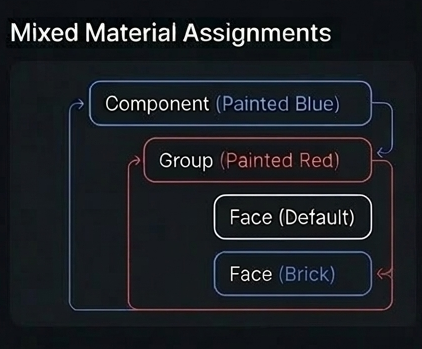
- Face: Material is applied directly to geometry and becomes part of the face itself.
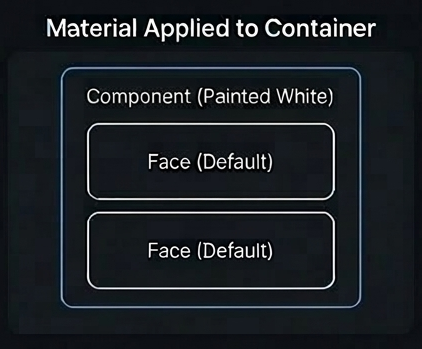
- Group: Material is applied to a group container and shows through faces that still use the Default material.
- Component: Material is applied to a component instance and affects that placed instance when internal faces remain Default.
SketchUp Material Behavior
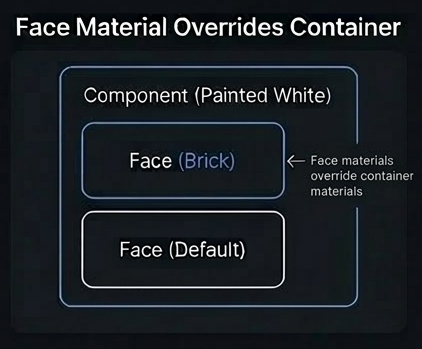
Face materials override container materials. Container materials only appear on faces that still use the Default material. This is the rule that drives the diagrams below.
The Recommended Material Structure
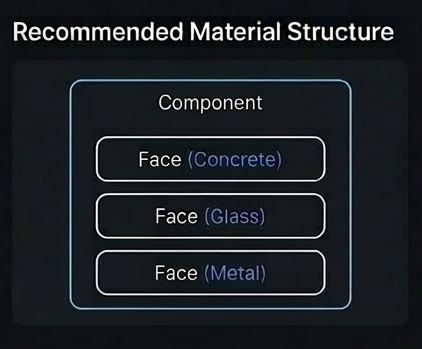
For most professional workflows, materials are easier to manage when they are applied directly to faces rather than containers.
- Clearer ownership: It is easier to see where a material is coming from.
- More predictable edits: Face-level painting reduces layered overrides inside nested objects.
- Better downstream behavior: Rendering, export, and collaboration workflows tend to behave more consistently.
Container materials can still be useful, but they are harder to reason about when models become large, nested, or shared across teams.
UMM Material Workflow Principles
Ultimate Material Manager is designed to improve consistency in production models.
SketchUp allows materials to be applied to faces and to container objects such as groups and components.
That flexibility is useful, but it can also create surprises when models get shared, rendered, or edited by teams.
UMM is designed around a few practical principles that help keep material workflows predictable and stable.
Face-First Materials
Put final visual materials on faces whenever possible rather than on container wrappers.
This keeps material ownership clear and makes it easier to understand where materials actually come from inside the model.
Consistent Face Strategy
Use one clear face-painting approach across the model.
For example, many workflows treat front faces as the primary material surface and keep back faces using the Default material.
Using a consistent approach helps avoid unexpected visual results during rendering or export.
Reliable Geometry Behavior
Cleaner modeling structure produces more stable material results.
Keeping geometry well organized inside groups and components helps ensure materials behave consistently during edits, replacements, and exports.
UMM does not force these rules on SketchUp.
It helps you apply them more consistently across the model.
How UMM Decides What to Change
To protect your model, UMM tools follow safety rules during edits.
Selection stays in selection
When a tool is used in selection mode, it edits only content safely inside that selection.
Operations are designed so that changes remain limited to the intended scope of the edit.
Shared components are handled conservatively
Components are shared objects in SketchUp.
If changing a component's internal faces could affect other instances outside the current selection, UMM may skip that edit rather than modify the shared definition.
This helps prevent unexpected changes elsewhere in the model.
Groups behave locally when appropriate
Groups are typically used as local containers in a model.
UMM tools can treat group edits in a localized way so that material changes stay where they were intended.
Locked content is skipped
Locked objects, or objects inside locked parents, are not modified.
This protects protected geometry and avoids unintended edits.
Reliable undo and cancellation
Operations are designed to support clean undo behavior and predictable cancellation during normal use.
Why UMM Skips Edits on Shared Components
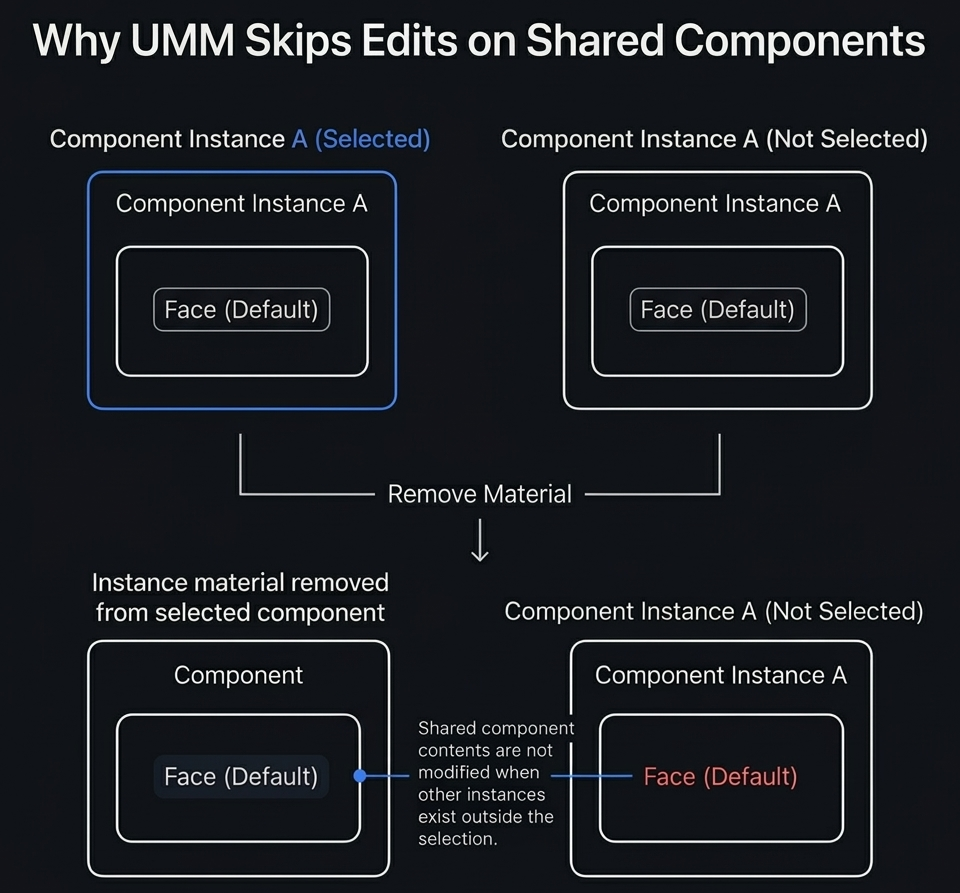
When multiple instances of the same component definition exist in a model, the component contents are shared between those instances.
If a tool operation would modify the internal faces of a component while other instances of that component exist outside the current selection, UMM may skip that edit.
This behavior protects shared component definitions from unintended changes elsewhere in the model.
Instance-level properties such as container materials can still be modified on selected objects, but shared component contents are only modified when it is safe to do so.
This helps ensure material operations remain predictable and limited to the intended scope.
What This Means for You
- Fewer unexpected "why did that change over there?" moments
- Lower-risk bulk operations on large, nested models
- More consistent results when exporting, rendering, or sharing files with others
Preparing Existing Models
If you are working with an existing SketchUp model, it is recommended to normalize the material structure before using Ultimate Material Manager tools extensively.
Many existing models contain a mix of face materials and container materials. While SketchUp allows this, it can make material behavior harder to understand in larger or more complex models.
Ultimate Material Manager works best when materials are primarily applied directly to faces.
Recommended workflow
- Save a backup copy of your
.skpfile. - Select the entire model.
- Open Material Diagnostics.
- Run Apply to Faces (Preserve Look).
This operation transfers container materials to faces while preserving the visible appearance of the model.
After this step, materials will primarily exist on faces, creating a cleaner and more predictable structure for further editing.
Why this is recommended
- clearer material ownership
- more predictable results when assigning or replacing materials
- easier handling of nested groups and components
- more consistent downstream behavior for rendering, export, and collaboration
When this is most useful
- older SketchUp projects
- imported models
- downloaded assets
- large nested models
- files that have been edited by multiple people
1. Quick Start
Install, activate, sync your model, and start cleaning materials in minutes.
Compatibility — SketchUp 2024–2026 (macOS & Windows). Behavior may vary slightly depending on OS version and system configuration.
If you're new to UMM, the Material Workflow Overview and UMM Material Workflow Principles sections explain how SketchUp materials behave and how UMM keeps edits predictable.
How Ultimate Material Manager Works
Ultimate Material Manager works directly on SketchUp's native material system. It does not introduce any custom file formats or proprietary data.
All changes are saved as standard SketchUp materials inside the .skp file. Models open and behave normally even if the extension is not installed.
Why These Principles Matter
The tools in Ultimate Material Manager are designed to support more consistent material behavior without changing SketchUp's underlying system.
By pushing materials to faces, highlighting inconsistencies, and simplifying cleanup, UMM helps reduce common issues such as missing materials, inconsistent shading, and unexpected results during export or collaboration.
Download Ultimate Material Manager
Install the latest RBZ using SketchUp’s Extension Manager.
Activate Your License
Ultimate Material Manager opens the License dialog automatically on first launch or when no license is active. Paste your key and click Activate. Activation only validates the license. Your model files remain accessible in SketchUp regardless of license state.
Start Exploring the Features
Run Material Diagnostics to inspect material assignments.
For existing models, you can use Apply to Faces (Preserve Look) to normalize container materials before making further edits.
After that, you can replace, transform, and organize materials from the main workspace.
Installation & Updates
- Enable / Disable: Restart SketchUp for the change to take effect.
- Uninstall / Update: Uninstall → Restart SketchUp → Install the new version.
- Note: Restarting SketchUp is required to reset the extension state.
2. Workspace Overview
UMM can run as a single-window drawer workspace (default) or as classic multi-window dialogs. The same core tools are available in both modes.
1. Main Window
Your central workspace for diagnostics, cleanup, assignment, and settings.
2. Material Library
Save texture-ready sets, batch rename, and reload libraries into any model.
3. Replace Materials
Use Simple mode for one swap, or Batch mode for multi-row replacement mapping.
4. Texture Transform
Capture textured faces, apply mapping tools, and fine-tune UVs with live updates.
3. Main Window Toolkit
Move down the toolbar to scan the model, diagnose issues, and run cleanup actions. The controls below follow the dialog order.
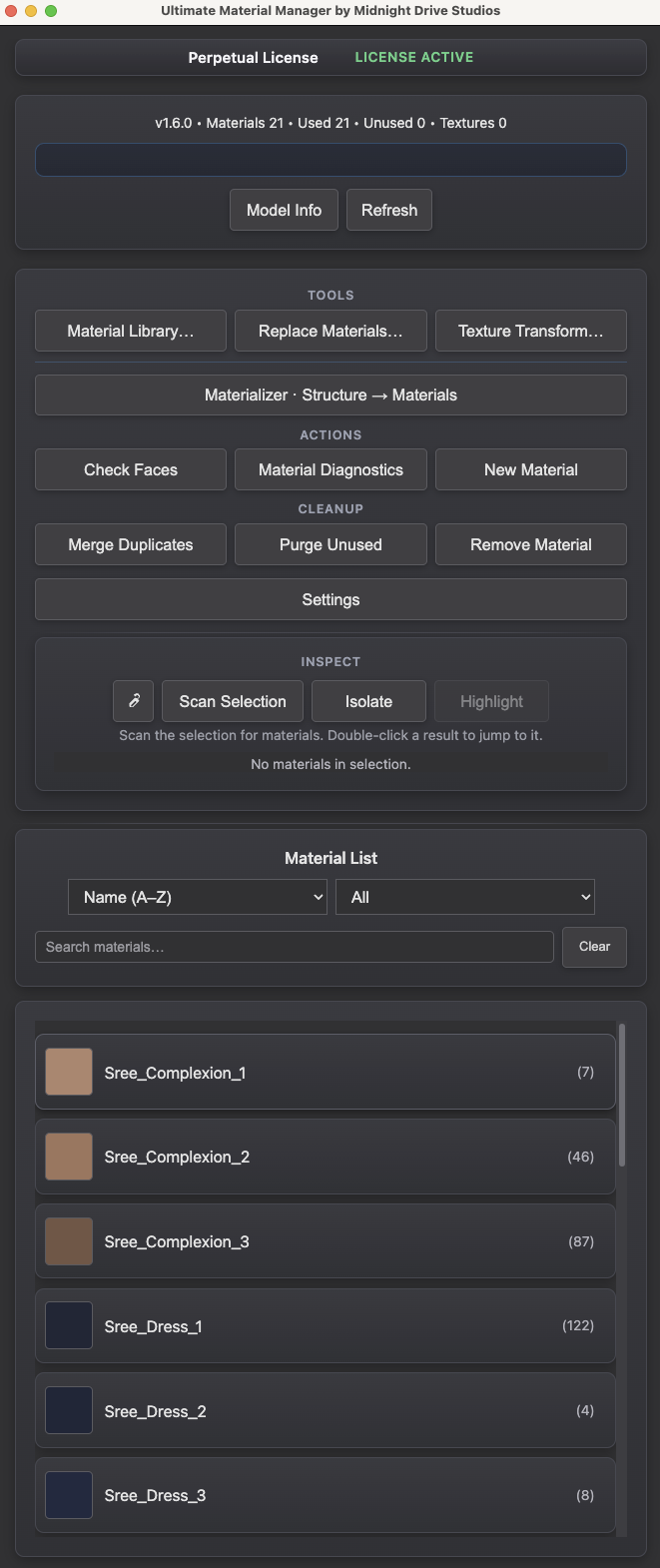
- License Banner: Shows your license status. Click to open License Dialog.
- Top Bar Info: Shows the extension version, total materials, and live scan progress.
- Status Message Bar: Displays live status text for the current action, selection checks, and tool results.
- Model Info: Run a quick material health scan that reports usage, conflicts, and cleanup priorities quickly.
- Refresh: Manually resync the panel so SketchUp stays in step without freezing your workflow.
- Panel Launch Buttons: Open Material Library, Replace Materials, and Texture Transform directly from the main toolbar.
- Materializer · Structure → Materials: Generate and assign materials from groups, components, and tags.
Main Window Toolkit
- Check Faces: Flag reversed faces with green fronts and red backs so orientation mistakes surface immediately.
Material Diagnostics
Reveal where materials live. On faces, groups, or components and push paints to faces for clean edits.
This helps surface container overrides that can lead to unexpected results in exports or collaboration.
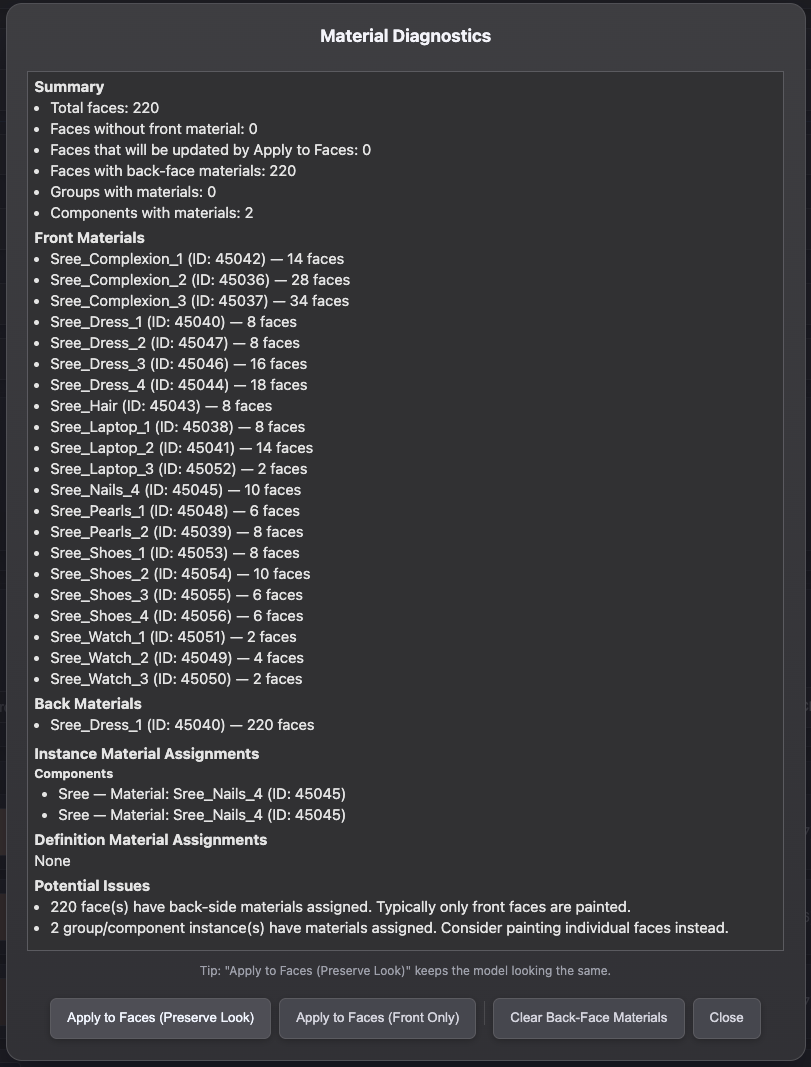
- Summary: A quick breakdown of face counts, missing front materials, Apply to Faces impact, back-face materials, and container material counts on groups/components.
- Front & Back: Lists the materials and IDs applied to each side.
- Assignments: Shows overrides stored on containers or component definitions.
- Potential Issues: Highlights different issues in your selection.
- Apply to Faces (Preserve Look): Bakes inherited materials onto face fronts and backs while preserving the model’s current appearance. Use this when you want clean face paints without changing how the model looks.
- Apply to Faces (Front Only): Applies container materials to front faces only, keeping the legacy behavior. Use this when you only need to push materials to fronts and leave back faces unchanged.
- Clear Back-Face Materials: Removes explicit back-face materials on the selected faces without modifying front faces. Use this to reset back faces before repainting or cleanup.
- New Material: Create a clean material with default values, then rename and edit as needed.
- Merge Duplicates: Combine matching materials to reduce duplicates, simplify schedules, and keep exports cleaner.
- Purge Unused: Remove unused materials in one click to keep models light, organized, and responsive daily.This reduces surprises during export or collaboration.
- Remove Material: Run cleanup in Selection Mode for focused edits or Full Model Mode for global removal.
- Settings: Open global UMM preferences for assignment behavior, interface layout, and startup options.
- Pick Material: Click any surface in SketchUp to identify its material and jump straight to editing.
- Scan Selection: List materials used by the active SketchUp selection and double-click a result to jump to it.
- Isolate: Filters the list to materials used by the active SketchUp selection.
- Highlight: Applies a temporary tint to selected materials and steps through them with the arrow keys while preserving PBR maps.
- Material List Filters: Use the sort and usage dropdowns to narrow materials before editing.
- Search Materials: Filters the list as you type. Searches are case-insensitive; clear the field to show everything.
Heads-up:
Highlight and Check Faces temporarily modify materials or render settings to display previews. These changes are meant to be temporary and usually clear automatically when you turn the tools off, refresh, close the window, or before saving.
However, it is strongly recommended to disable Highlight and Check Faces before saving your model. If SketchUp crashes or is force-closed while a preview is active, the preview state may be written into the saved file and overwrite the original material appearance.
If you notice thumbnails or faces showing a previewed look, simply toggle these tools off and save again to help keep the file clean.
Material List Functions

- Assign: Apply the active material directly to faces and clear container paints where applicable for consistency.
- Edit: Adjust color, texture, scale, and PBR maps from one panel without leaving SketchUp.
- Rename: Update material names quickly so schedules, exports, and library folders stay aligned.
- Usage: List every entity using the material, then click Select on any row to select that object in the model.
- Duplicate: Clone the active material with all parameters preserved for rapid iterations and alternates.
- Highlight: Highlight selected material in the viewport.
Edit Material Window
Click Edit to open the editor. SketchUp 2025+ uses the full panel shown below; SketchUp 2024 opens a simplified window that keeps the core controls.

- Name: Rename the material.
- Colour & Opacity: Adjust the swatch and 0–100% opacity slider.
- Dimensions: Width and Height in Ultimate Material Manager are entered in inches. SketchUp stores texture sizes internally in inches. SketchUp’s native Materials editor may display converted values based on model units, but the underlying size is the same.
- Texture Actions: Load, find, or remove the current bitmap.
- PBR Maps (2025+): Enable, load, or remove Metallic, Roughness, Normal, and Ambient Occlusion maps with strength sliders.
- Simplified view (2024): Classic controls only: name, colour, opacity, size, preview, and texture actions, without the PBR map panel.
- Footer Controls: Save applies changes; Cancel closes without updating the model.
4. Material Library
Stage, save, and reload reusable materials.
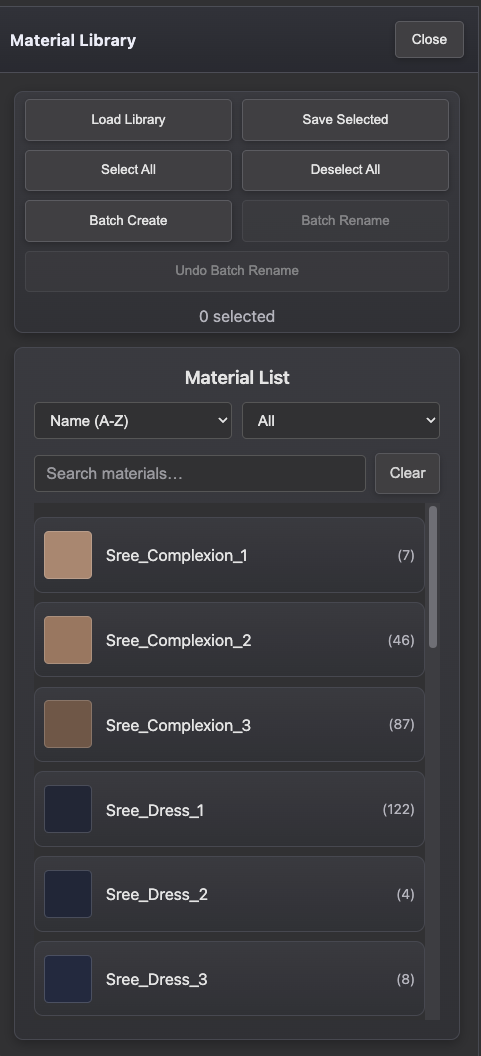
- Load Library: Load saved libraries into the model by choosing a directory entry and applying it.
- Save Library: Export selected materials with textures and a JSON reference so teams share consistent sets.
- Sort & Usage Filter: Organize the list by name or usage and filter to all, used, or unused materials.
- Search: Filter the list as you type and clear quickly to return to the full library.
- Selection: Drag-select multiple swatches to stage bulk actions without toggling each material manually.
- Select All: Grab the whole library in one gesture to streamline batch edits and exports.
- Deselect All: Clear the active selection quickly to reduce accidental bulk edits.
- Batch Rename: Apply prefixes, suffixes, and numbering in one pass for studio-grade naming discipline.
- Undo Batch Rename: Revert the most recent rename run quickly if results stray from standards.
- Batch Create: Generate up to 100 materials with structured names and automatic colors ready for review.
- Delete Progress & Cancel: Longer delete operations show progress and can be cancelled from the progress overlay.
5. Replace Materials
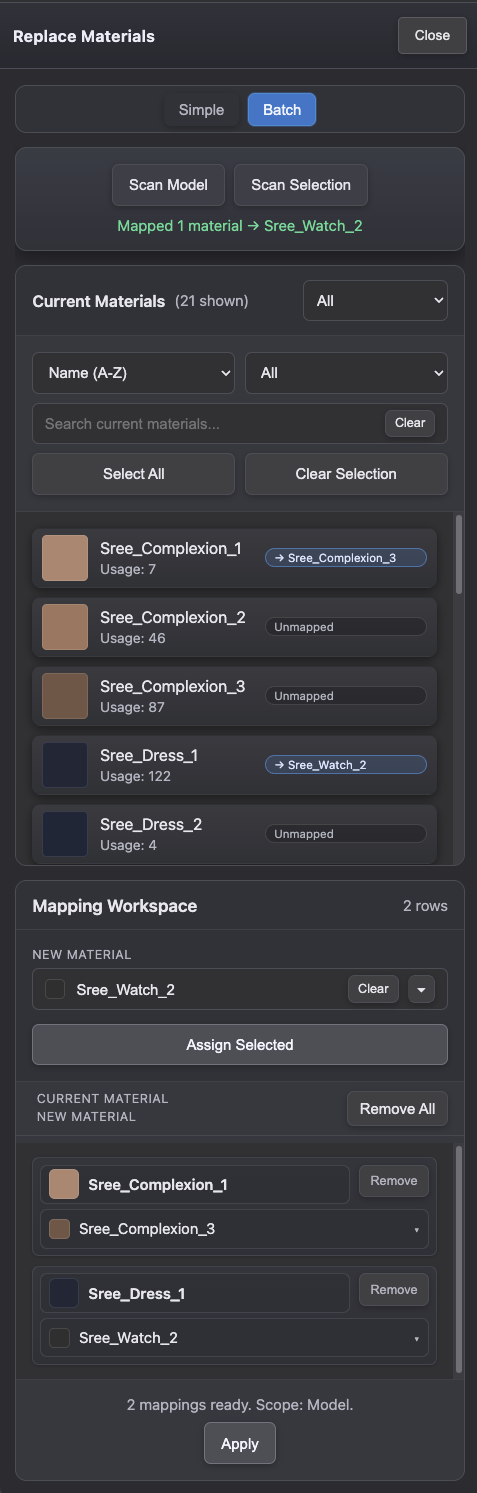
Replace workflows are split into two tabs: Simple and Batch.
Both workflows are designed to keep material changes explicit and consistent.
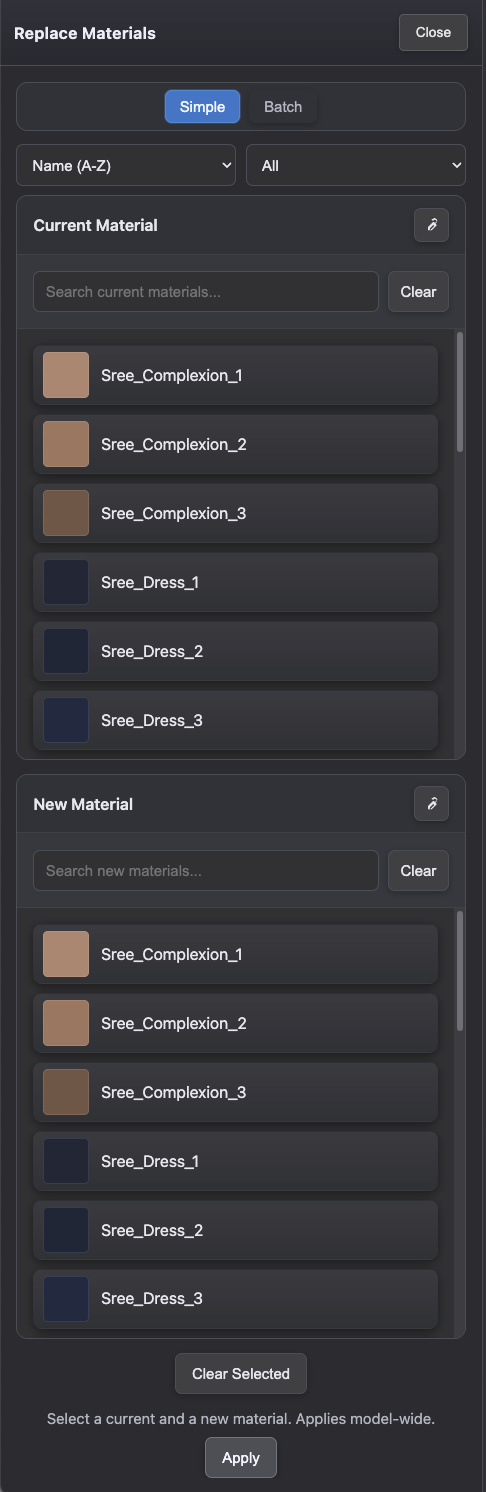
- Simple Mode: Choose one Current Material and one New Material, then apply a direct model-wide swap.
- Simple Pickers: Use the pick buttons to sample current/new materials from the model viewport.
- Batch Mode Scans: Run Scan Model or Scan Selection to build the Current Materials list.
- Batch Filters: Filter by mapping state (All/Unmapped/Mapped), then sort/filter by usage and search by name.
- Mapping Workspace: Assign selected current materials to a target material, review rows, and apply all mappings together.
- Eyedropper Choice Dialog: When one pick hits multiple materials, choose exactly one using Use Selected.
6. Texture Transform
Capture faces for UV edits with live previews.
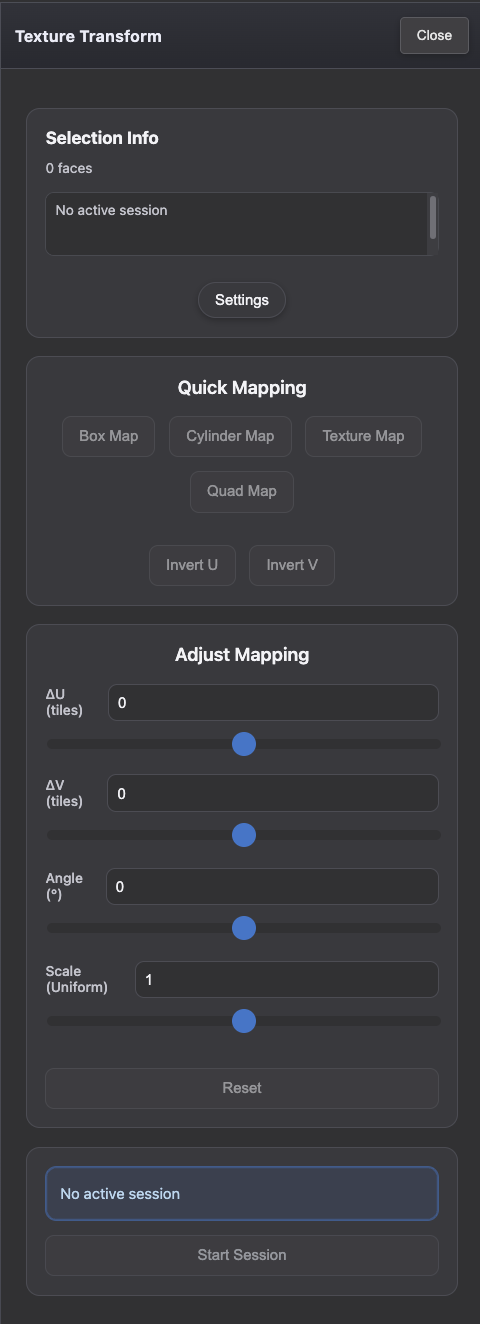
- Selection Info: Shows selection status and warns when no textured faces are ready for a session.
- Start Session: Capture the current textured-face selection and begin transform editing.
- Apply Changes / Cancel: End a session by applying current edits or cancelling uncommitted changes.
- Quick Mapping: Run Box Map, Cylinder Map, Texture Map, or Quad Map, plus Invert U/V.
- Adjust Mapping: Fine-tune ΔU, ΔV, angle, and scale with linked sliders and numeric fields.
- Transform Settings: Open Settings for uniform scaling, snap controls, slider sensitivity, and range limits.
7. Materializer
Materializer is designed to create consistent, face-applied materials in one pass.
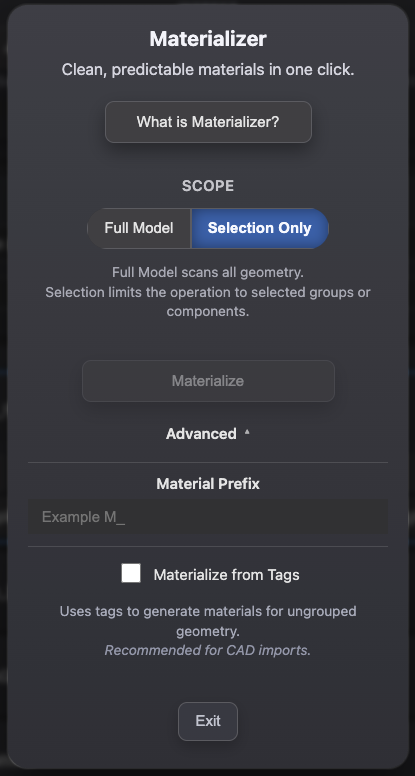
- What is Materializer? Opens the built-in guide.
- Scope: Choose Full Model to scan all geometry, or Selection Only to limit the run to selected groups/components.
- Materialize: Runs material creation and assignment for the selected scope.
- Advanced: Expands optional controls.
- Material Prefix: Adds a prefix to generated material names.
- Materialize from Tags: Uses tags to generate materials for ungrouped geometry (recommended for CAD imports).
- Exit: Closes the Materializer panel.
8. Settings Main Menu
Settings sit in the toolbar across every window. Set them once and the preference carries with you.
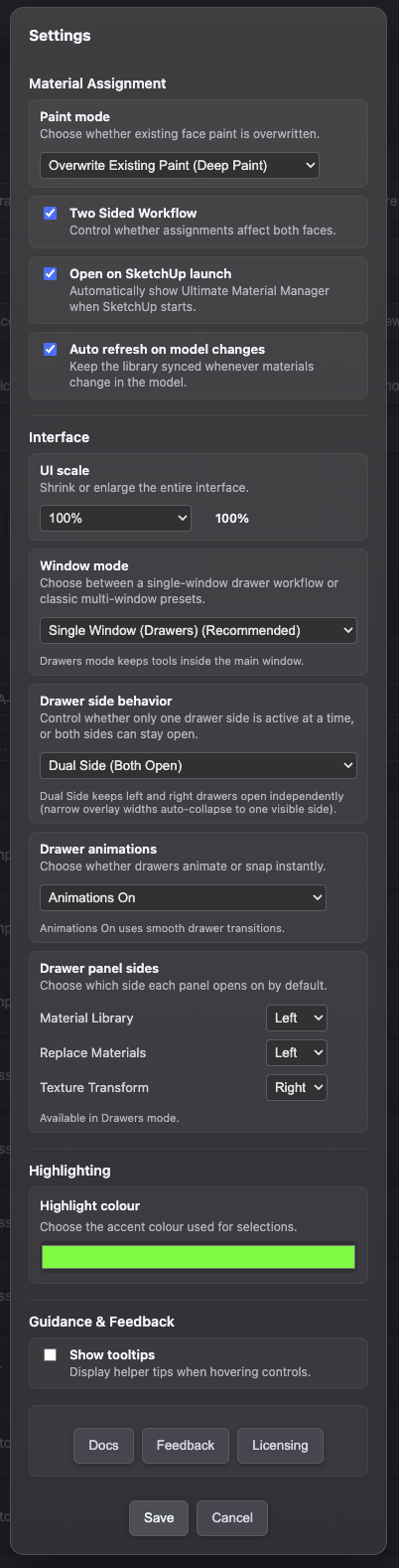
Material Assignment
Paint mode
Choose how face assignment behaves when faces already have material paint.
Overwrite Existing Paint (Deep Paint)
Assigns the selected material across the selection, including nested groups and components.
- Overwrites existing face materials
- Ensures a consistent result across the entire selection
Use this when:
You want to assign a material throughout a selection, regardless of nesting depth or existing face materials.
Do Not Overwrite
Fills only unpainted faces without replacing existing assignments.
- Skips faces that already have a material
- With Two-Sided ON, both sides must be blank to be filled
- With Two-Sided OFF, only the front must be blank
Use this when:
You want to fill in missing materials without changing faces that already have paint.
Additional Assignment Toggles
- Two Sided Workflow: Control whether assignment affects both face sides.
- Open on SketchUp launch: Automatically open UMM when SketchUp starts.
- Auto refresh on model changes: Keep the material list synced as the model changes.
Example
A component contains:
- Some faces painted red
- Some faces unpainted
- Deep Paint: All faces receive the new material
- Do Not Overwrite: Only unpainted faces receive the new material; red faces remain unchanged
Interface
- UI scale: Set interface size from the scale dropdown.
- Window mode: Choose Single Window (Drawers) or Multi-Window (Presets).
- Drawer side behavior: Keep one side active at a time or allow both sides open.
- Drawer animations: Toggle smooth transitions or instant snap behavior.
- Drawer panel sides: Set default left/right side for Material Library, Replace Materials, and Texture Transform.
Window Layout Presets
- Availability: Preset controls are active in Multi-Window (Presets) mode.
- Preset: Save, load, update, or delete full window layout sets.
- Auto-load preset on startup: Restore a chosen preset when UMM opens.
- Auto-open windows on startup: Choose auto-open behavior for Material Library, Replace Materials, Texture Transform, Feedback Popup, and the License window (if needed).
Highlighting
- Highlight colour: Choose the accent colour used for selections.
Guidance & Feedback
- Show tooltips: Display helper tips when hovering controls.
Docs, Feedback and Licensing
- Docs: Link to this documentation.
- Feedback: Opens the embedded feedback popup for Bug Reports, Feature Requests, and General Feedback.
- Licensing: Opens the licensing dialog to manage activation.
Workflow Notes — Predictable Materials
In practice, consistent material workflows tend to follow a simple pattern:
- Geometry is prepared cleanly, with solids where possible.
- Materials are applied directly to faces early in the process.
- Consistency is maintained throughout the model.
- Cleanup tools are used before export or collaboration.
Ultimate Material Manager is designed to support this flow without changing SketchUp's native behavior.
9. Licensing FAQ
This FAQ explains how licensing and activation work in Ultimate Material Manager. Use it as a reference for installation, activation, device usage, and general license questions.
Do I need a license to use Ultimate Material Manager?
Yes. Each user needs a valid license key to activate Ultimate Material Manager. Once activated, licensed features become available according to your plan.
What happens if I stop using Ultimate Material Manager or share a file with someone who does not have it installed?
Ultimate Material Manager improves how materials are managed while you work, but all data is stored as standard SketchUp materials inside the .skp file. Files open and behave normally without the extension installed.
Is there a free version or trial of Ultimate Material Manager?
Ultimate Material Manager is designed for professional SketchUp workflows and large production models, so there is no free version or trial at the moment. A lot of development and testing goes into keeping the tools fast and stable for real client work. If you're unsure whether UMM fits your workflow, we're happy to answer questions or explain how specific features work.
How many computers can I use my license on?
For individual licenses, each license is intended for one user and allows activation on up to two personal computers.
Typical examples include:
- Desktop and laptop
- Home and work computer
- Main workstation and travel laptop
As long as the same person is using both devices, this is permitted under current license terms.
For studios or teams, a single license may include multiple seats, allowing several team members to use the extension under one shared license key, up to the number of available seats.
What if I replace my computer or upgrade hardware?
If you replace your computer, reinstall your operating system, upgrade hardware, or migrate to a new device, you can activate Ultimate Material Manager on the new machine using your existing license.
If all available seats are currently in use, you may be prompted to release an existing seat during activation so you can continue using the extension on the new device.
In most cases, no support request is required.
How do I activate my license?
- Install the extension
- Open Ultimate Material Manager in SketchUp
- Enter your license key
- Press Activate
Activation usually takes a few seconds if you have an internet connection.
Can I use the extension offline?
Yes. After activation, Ultimate Material Manager can operate offline for a grace period.
This is useful when working:
- While traveling
- On jobsites
- In locations without reliable internet
The extension typically revalidates automatically once you reconnect to the internet.
What is a "seat"?
A seat represents one active installation of the extension.
- Individual licenses include two seats, intended for use by one person on two personal devices.
- Studio or team licenses may include multiple seats under a single license key.
If all seats are in use and a new activation is attempted, you may be prompted to release an existing seat before activating on a new device.
Seats are shared across the license and determine how many devices can be active at the same time.
Can someone else use my license?
For individual licenses, no. Each individual license is intended for a single user and may not be shared with others.
For studio or team licenses, seats may be shared across team members within the same organization, up to the number of seats included in the license.
Sharing license access outside your organization is not permitted.
Can I upgrade or add more seats later?
Yes. Additional seats or licenses can be added at any time.
This is useful for:
- Growing teams
- Additional workstations
- Studios or agencies scaling their usage
Contact support if you need help expanding or adjusting your licensing.
What if I run into activation issues?
Common causes include:
- Incorrect license key
- Temporary network issues
- Activation limit reached
If activation issues persist, click Reset This Device in the License dialog and enter your license again. This usually resolves the problem.
Does the extension track my materials or activity?
No. Ultimate Material Manager does not send or store your project data, materials, or personal content. The system only stores:
- Device fingerprint
- License key
- Activation timestamps
This information is used strictly for license validation.
9.1 Activation Troubleshooting: "No Internet Connection" or "License Server Unavailable"
This guide helps you restore connectivity so your license can be verified successfully.
Ultimate Material Manager uses a secure licensing service hosted on Cloudflare. Because of this, your computer needs to be able to reach Cloudflare's network to activate the extension.
If you see messages like "No Internet Connection," "License Server Unavailable," or "Temporary validation issue" (usually temporary), your computer or network could not reach the license service at that moment. This is usually caused by:
- VPN services
- Antivirus or privacy software
- Corporate firewalls
- DNS filtering tools
- Networks with limited access to international services
What this means
- If already activated: the extension can continue in offline mode for up to 14 days.
- If first-time activation: internet access is required to complete activation.
You can use the steps below to resolve the problem.
1. Check basic connectivity
Open this link: https://1.1.1.1/help
- If the page loads: your network can reach Cloudflare → continue to Step 2
- If the page does not load: activation is unlikely to work on this network → try another network (home Wi‑Fi, mobile hotspot, etc.)
- If the page loads but the error persists: this may be temporary server or Cloudflare-side unavailability. Wait a few minutes and retry activation.
2. Restart SketchUp
Close SketchUp completely, then reopen it and try activating again.
3. Turn off VPNs
Disable any VPN or proxy temporarily, then try activating.
If you recently used a VPN, please restart your computer to help deactivate any remaining VPN network adapters.
4. Check antivirus and security tools
Some security software may block background connections. Temporarily disable features like:
- Web Protection
- HTTPS Scanning
- SSL/TLS filtering
- Online Threat Prevention
Common tools that may block activation include F-Secure, BitDefender, Norton, Kaspersky, ESET, MalwareBytes, and Windows Defender Web Protection.
Try activating again, then re-enable protections.
5. Try another network
If activation fails on one network, switching to another often solves it (mobile hotspot, home network, etc.).
6. After activation
Ultimate Material Manager can operate offline for up to 14 days before needing to refresh the license.
You do not need constant internet access once activation succeeds.
Still having trouble?
If activation still doesn't work, we're here to help.
When you contact support, please include:
- Your OS (Windows / macOS)
- Your SketchUp version
- Any security or antivirus software installed
- The exact error text shown in the activation dialog
- Whether the https://1.1.1.1/help page loads
This helps us diagnose the issue quickly.
We'll get this resolved for you as fast as possible.
10. Quick Uninstall Guide
Completely remove Ultimate Material Manager, including extension files and optional licensing data.
Step 1 — Uninstall via SketchUp
- Open SketchUp.
- Go to Window → Extension Manager.
- Select Ultimate Material Manager.
- Click Uninstall.
- Restart SketchUp.
If this succeeds, you are done. If SketchUp leaves files behind, continue to manual removal.
Step 2 — Manual Removal
Use this only if Extension Manager did not remove the files completely.
macOS
- Close SketchUp.
- Press
Command + Shift + Gin Finder and go to~/Library/Application Support/SketchUp/SketchUp 20XX/SketchUp/Plugins/. - Delete
MDS_UltimateMaterialManager.rband theMDS_UltimateMaterialManager/folder. - Restart SketchUp.
Windows
- Close SketchUp.
- Paste
%APPDATA%\\SketchUp\\SketchUp 20XX\\SketchUp\\Plugins\\into File Explorer. - Delete
MDS_UltimateMaterialManager.rband theMDS_UltimateMaterialManager\\folder. - Restart SketchUp.
Step 3 — Remove Local Licensing Data (Optional)
Clears device identity files; your models and materials remain untouched.
macOS
Delete the folder ~/.ultimate_material_manager/.
Windows
Delete the folder %USERPROFILE%\\.ultimate_material_manager.
Removing these folders clears the machine ID and device secret. Reinstalling later typically treats the device as new.
11. Privacy & GDPR
Ultimate Material Manager only stores the minimum technical data required to activate and validate your license. This includes a device identifier, a locally cached license token, and basic license status details. No personal information—such as your name, email address, purchase details, or customer metadata—is ever stored on your device by the extension.
No personal files, materials, models, or user-generated content are collected, transmitted, or analyzed. All licensing communication is strictly limited to verifying your license with our secure server.
You may reset or delete all local licensing data at any time by removing the folder ~/.ultimate_material_manager (macOS) or %USERPROFILE%\\.ultimate_material_manager (Windows).
If you wish to access your purchase information, request deletion, or exercise any GDPR rights, please contact us through the “Contact Us” link on our website.
12. EULA
End User License Agreement
Last updated: 2026-01-29. Below is the End User License Agreement governing the use of Ultimate Material Manager. It describes the rights, limitations, and terms that apply to installation and activation of the software.
- Acceptance of Terms: By purchasing, downloading, installing, activating, or using Ultimate Material Manager (the "Software"), you agree to be legally bound by this Agreement with Midnight Drive Studios AB. If you do not agree, do not install, activate, or use the Software.
- License Grant: You receive a limited, revocable, non-exclusive, non-transferable, non-sublicensable license to install and use one copy of the Software for personal or internal business use. This license applies to use within supported SketchUp versions (SketchUp 2024-2026). The Software is licensed, not sold.
- Permitted Use: You may install and use the Software on computers you own or control, activate it with a valid license key, use it for personal, freelance, or commercial client projects, and make one backup copy for archival purposes.
- Prohibited Use: You may not reverse-engineer, decompile, or access source code; modify or create derivative works; distribute, share, rent, lease, lend, sublicense, or transfer the Software or keys; bypass licensing or security; or use the Software in violation of laws or SketchUp/Trimble terms.
- Ownership: Midnight Drive Studios AB retains all intellectual property rights; no ownership is transferred and all rights not expressly granted are reserved.
- License Keys and Activation: Activation with a valid license key is required. Keys may not be shared. Licensor may suspend or revoke keys suspected of misuse or fraud.
- Updates and Changes: Updates: Midnight Drive Studios AB may provide updates for supported SketchUp versions. Major version upgrades may be offered separately. Support or updates are not guaranteed beyond included periods.
- Feature Descriptions and Availability: Descriptions of features, functionality, compatibility, screenshots, videos, and other product information provided on the website, in documentation, marketing materials, or other communications are for informational purposes only and do not constitute a guarantee or binding promise.
The Software and its features may be modified, updated, limited, or discontinued at any time without prior notice. Midnight Drive Studios AB does not warrant that any specific feature will be available at any given time or remain unchanged.
Purchasing the Software does not grant any rights to specific features beyond those expressly stated in this Agreement.
No reliance should be placed on future features, planned functionality, or roadmap items unless expressly agreed to in writing by Midnight Drive Studios AB. - No Warranty - "AS IS": The Software is provided "AS IS" without warranties of any kind. Compatibility, error-free operation, or uninterrupted functionality are not guaranteed; you assume all risk.
- Limitation of Liability: To the maximum extent permitted by law, Licensor is not liable for indirect, incidental, special, consequential, or punitive damages (including loss of profits or data). Total liability is limited to the amount paid for the Software.
- Indemnification: You agree to indemnify and hold Licensor harmless from claims arising from misuse or violation of this Agreement.
- Refunds: Refund requests are evaluated on a case-by-case basis by Licensor or Lemon Squeezy. Requests may be denied if activation or misuse is detected.
- Third-Party Services: Licensor is not responsible for changes to SketchUp, Trimble APIs, or other third-party services affecting compatibility.
- Export Compliance: You agree to comply with all applicable export laws and restrictions.
- Termination: The Agreement terminates automatically if violated. Upon termination you must stop using and delete all copies; Licensor may revoke license keys.
- Governing Law and Jurisdiction: This Agreement is governed by Swedish law, with disputes resolved exclusively in Stockholms tingsratt (Stockholm District Court).
- Severability: If any provision is unenforceable, the remaining provisions remain in effect.
- Entire Agreement: This Agreement constitutes the complete understanding between you and Licensor.